
If you need one fast takeaway, here it is: these 10 tools split into a few clear groups. Jet Admin, Kissflow, and Pipefy fit approval-heavy internal work. Zapier, Make, Activepieces, and n8n fit app-to-app flows and event-based tasks. Unito is mainly for two-way data sync. Power Automate fits Microsoft shops. Workato fits large teams with strict control needs.
I’d narrow the list by asking three questions first:
- Do you need approvals and request forms, or just app triggers?
- Do you need cloud only, or self-hosted / on-prem?
- Will your cost grow by users, runs, or synced records?
This article reviews all 10 tools across the same checks:
- workflow logic
- approvals and request handling
- integrations and data access
- governance and deployment
- fit for onboarding, ticket routing, purchase approvals, data sync, and internal requests
A few points stand out right away:
- Jet Admin stands out for internal tools on top of live databases, with cloud hosting and on-premise deployment on the Enterprise plan.
- Zapier starts at $19.99/month and is one of the easiest ways to connect SaaS apps.
- n8n starts at $20/month for paid plans and gives teams more control if they can handle setup.
- Power Automate starts at $15/user/month billed annually and makes the most sense if you already use Microsoft 365.
- Unito is less about workflow paths and more about keeping records matched across tools.
5 BEST Tools for No-code Automation
sbb-itb-8346adb
Quick Comparison
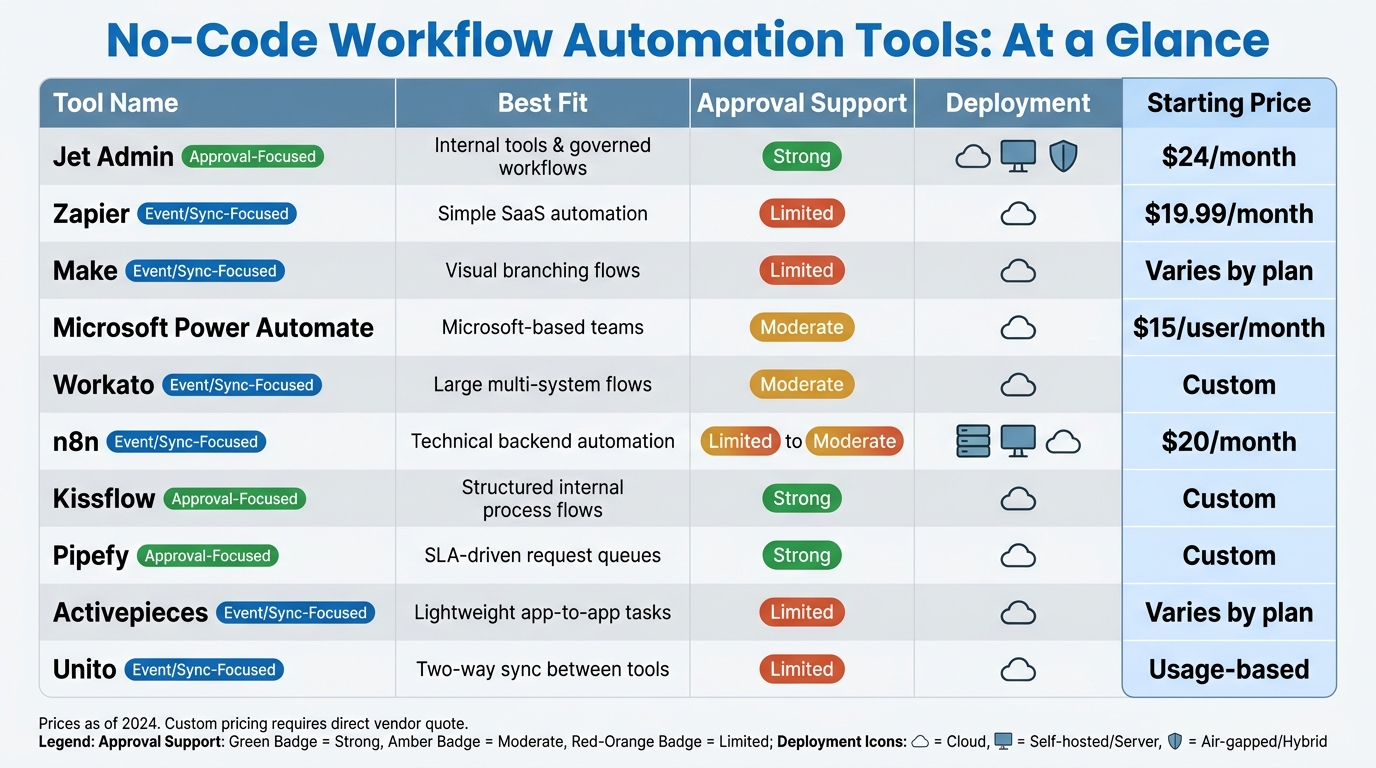
No-Code Workflow Automation Tools Compared: Quick Reference Guide
| Tool | Best Fit | Approval Support | Deployment | Starting Price |
|---|---|---|---|---|
| Jet Admin | Internal tools and governed workflows | Strong | Cloud; on-premise on Enterprise | Free; Pro $20/month |
| Zapier | Simple SaaS automation | Limited | Cloud | $19.99/month |
| Make | Visual branching flows | Limited | Cloud | Varies by plan |
| Microsoft Power Automate | Microsoft-based teams | Moderate | Cloud | $15/user/month |
| Workato | Large multi-system flows | Moderate | Cloud | Custom |
| n8n | Technical backend automation | Limited to moderate | Self-hosted, cloud | $20/month |
| Kissflow | Structured internal process flows | Strong | Cloud | Custom |
| Pipefy | SLA-driven request queues | Strong | Cloud | Custom |
| Activepieces | Lightweight app-to-app tasks | Limited | Cloud | Varies by plan |
| Unito | Two-way sync between tools | Limited | Cloud | Usage-based |
My read: if you want a short list fast, start with Jet Admin, Workato, Kissflow, Power Automate, and n8n. They cover most of the common cases teams care about: approvals, system connections, deployment control, and workflow depth. From there, match the tool to your stack, your security rules, and how much human review your process needs.
Now let’s get into the rankings and trade-offs.
1. Jet Admin
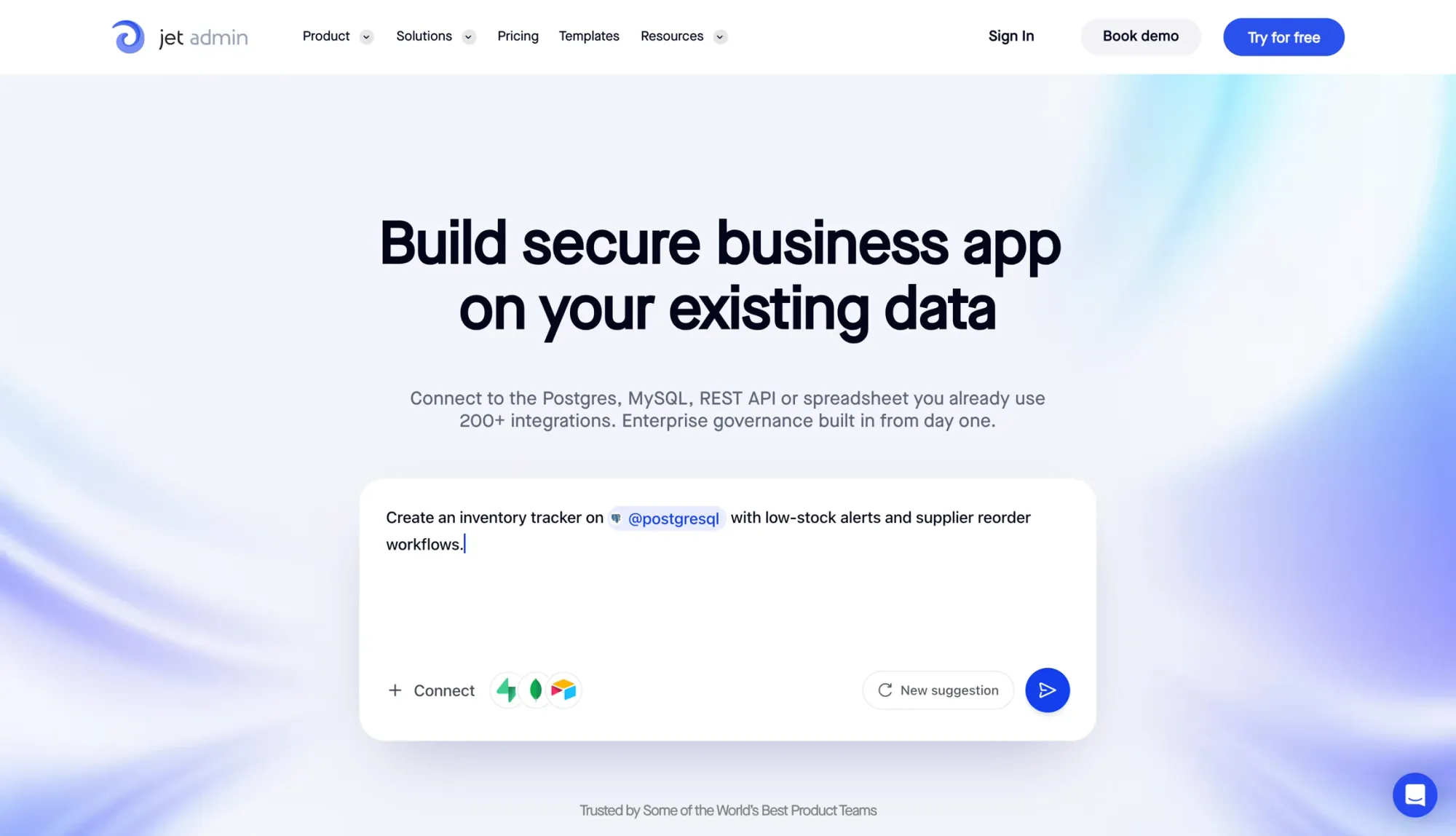
Jet Admin is an AI-powered, no-code app builder for internal tools, admin panels, custom CRMs, dashboards, and workflows that sit on top of your current data. It works best when a team wants to build internal processes on top of databases they already use, instead of moving everything to a new system.
Workflow Logic
Jet Admin supports workflow automation with triggers based on database changes, scheduled jobs, and webhooks. That makes it useful for onboarding steps, purchase approvals, request handoffs, and status updates. The free tier includes unlimited apps and workflow runs, which gives teams room to build routine ops flows without hitting usage limits too early.
Approvals & Requests
The platform supports approval workflows, ticket queues, and request management, so it fits common internal service requests and purchase approval flows. Role-based permissions (granular permissions on Business and above) control who can view, edit, and approve specific records, which helps keep the right tasks in the right hands.
Integrations & Data Access
Jet Admin connects to major databases, SaaS apps, APIs, and spreadsheets, including PostgreSQL, MySQL, Microsoft SQL, Oracle, MongoDB, Snowflake, Salesforce, Google Sheets, and Airtable. It also supports authentication options like SSO (on Business and above), SAML, Auth0, Google OAuth, and OIDC. In plain terms, teams can plug Jet Admin into the systems they already run and keep day-to-day workflows tied to current data without a migration project.
Governance & Deployment
Jet Admin runs in the cloud, and on the Enterprise plan it can be deployed on-premise with self-hosted AI models. That's a strong fit for ops teams working with sensitive data in regulated or locked-down settings. Granular permissions, SSO and audit logs are on the Business plan and above. Pricing is by AI credits, not seats: every plan, including Free, has unlimited apps, users and workflows; Pro is $20/month ($16 billed yearly) and Business is $100/month ($80 billed yearly).
2. Zapier
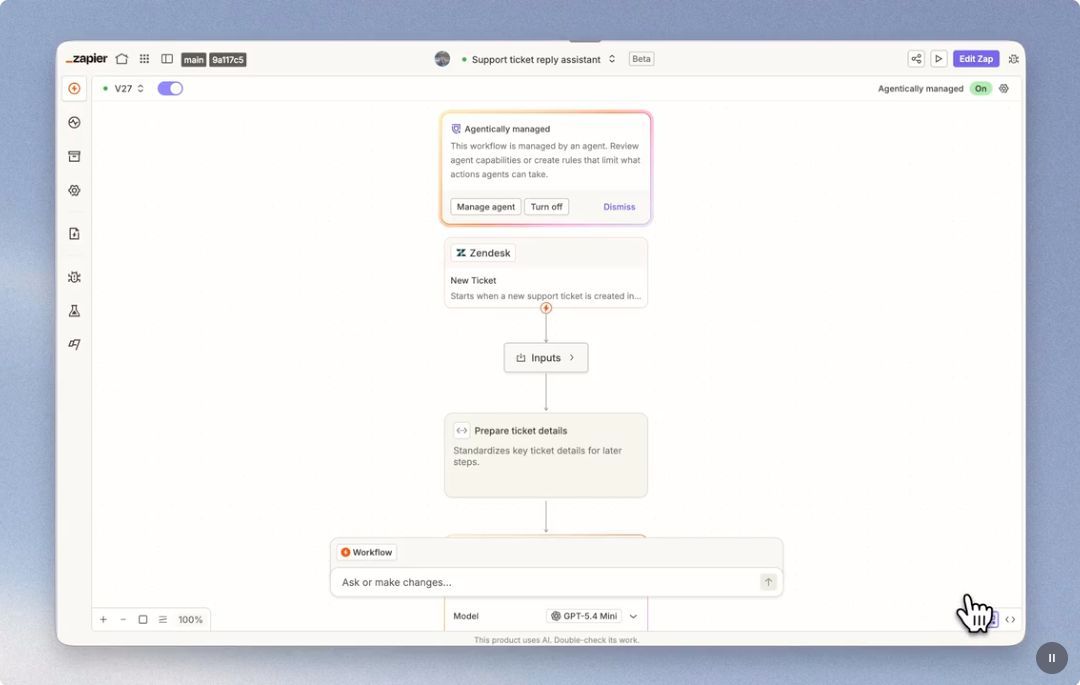
Zapier is best for linking SaaS apps into simple, event-driven automations. Put plainly, it helps teams pass work from one app to another without manual handoffs.
Workflow Logic
Zapier supports multi-step automations, scheduled triggers, and webhook-based events. It’s often used for event-triggered automations between SaaS systems, especially when a workflow starts when an app’s status changes.
For ops teams, that makes Zapier a solid pick for multi-step automations and scheduled runs. There’s one catch: the free plan puts limits on logic, triggers, and data handling. And when a process needs human approval, Zapier usually passes that part off to connected apps instead of handling it natively.
Approvals & Requests
Approval steps in Zapier rely on connected tools like email, Slack, or forms. While that works for simple request routing, more complex needs require dedicated approval workflow software.
But once request flows get more involved, things can get messy fast. You may need several apps working together just to move one request from start to finish.
Integrations & Data Access
Zapier’s biggest selling point is the sheer number of app connections. It offers a broad connector library and often acts as the bridge between front-office tools and core business systems.
Shared access controls are paid-plan features. So if your team needs access control at the team level, you’ll need a paid plan.
Governance & Deployment
For ops teams, access control and shared management matter just as much as automation depth. Zapier puts collaboration, versioning, deployment controls, and analytics and monitoring behind a paid plan.
The Professional plan starts at $19.99/month.
3. Make
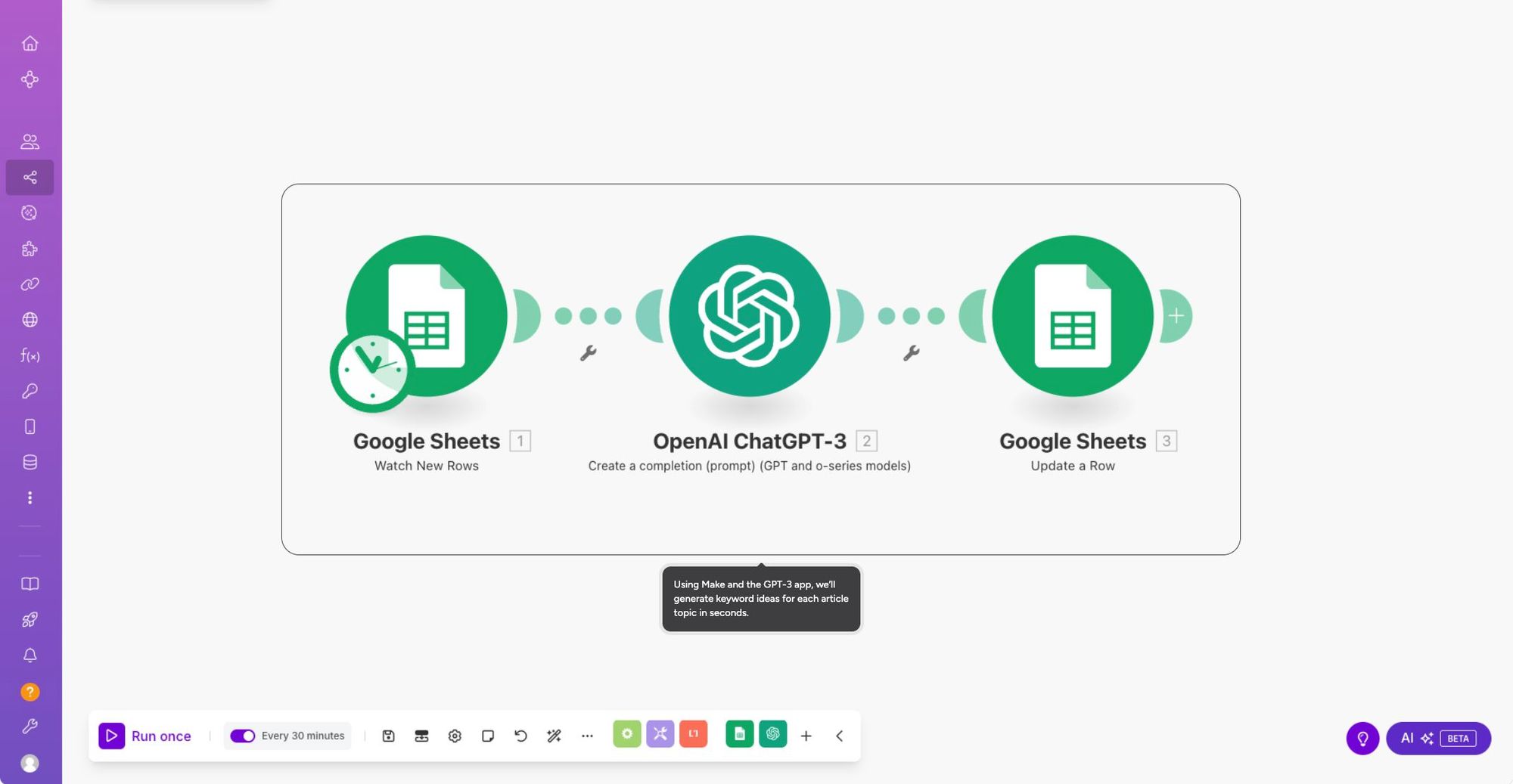
Make works well for teams that need branching logic and more visual control. Its drag-and-drop canvas helps you see how a process moves from one step to the next, which is handy when a workflow starts to get messy.
Workflow Logic
Make supports multi-step branching automations, scheduled triggers, and API-based workflows. In plain English, that means you can build flows that react differently based on conditions, run at set times, or connect straight to other systems.
That setup is useful for time-based business processes and ops workflows with several decision points. For example, you can route a request through one approval path for one record value and send it somewhere else when the data changes.
Approvals & Requests
Make is an automation layer, not a request intake layer. So while it can move data and trigger steps behind the scenes, it doesn't come with native request forms or approval dashboards. If people need to submit requests or managers need a place to review and approve them, you'll need a separate tool.
Integrations & Data Access
Make connects with many external apps and APIs, and that connector library is available on the free tier. That's a nice plus if you want to test ideas without paying up front.
Still, don't assume every setup works the way you need. If your process depends on SQL, Airtable, or Google Sheets, check for two-way, real-time sync before you commit.
Governance & Deployment
The free plan includes visual design, data modeling, integrations, and workflow automation. Paid plans add user authentication, role permissions, collaboration, versioning, deployment controls, and monitoring.
That split matters. You can build and test a lot on the free plan, but teams that need tighter access control and cleaner rollout processes will likely need a paid tier.
4. Microsoft Power Automate
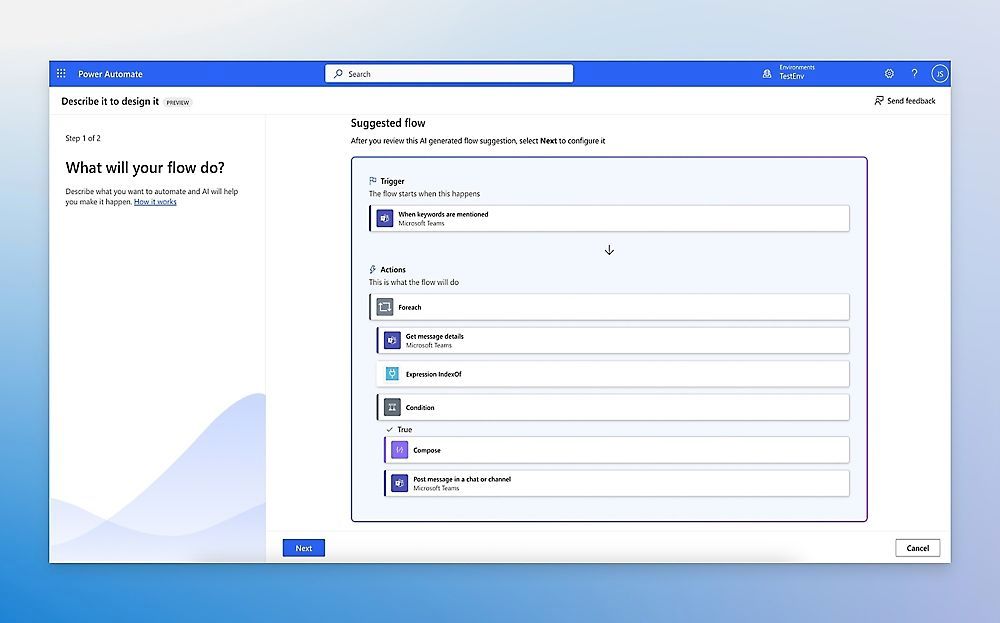
Microsoft Power Automate works well for organizations that already run on Microsoft 365. It connects neatly with Excel, Microsoft Lists, and SharePoint, which makes it a solid pick for onboarding, access requests, and ticket routing.
Workflow Logic
Power Automate is a good option for internal workflow automation. It handles onboarding flows, access request intake, and ticket routing without much friction. If you need workflows that span multiple systems, though, plan for more setup.
Approvals & Requests
It comes with a built-in approval action for common approval use cases. That’s handy for straightforward request flows. For more involved request processes, you’ll likely need extra setup.
Integrations & Data Access
Its main strength is tight integration with Microsoft 365, Teams, and SharePoint. So if your team already lives in that stack day to day, Power Automate can feel like the natural next step.
Governance & Deployment
For enterprise use with guardrails in place, pricing and admin controls matter. There’s a free plan for basic use, and paid plans start at $15/user/month when billed annually, with a 30-day trial for paid features. For governed workflows at scale, Microsoft points teams toward Dataverse and Power Apps.
5. Workato
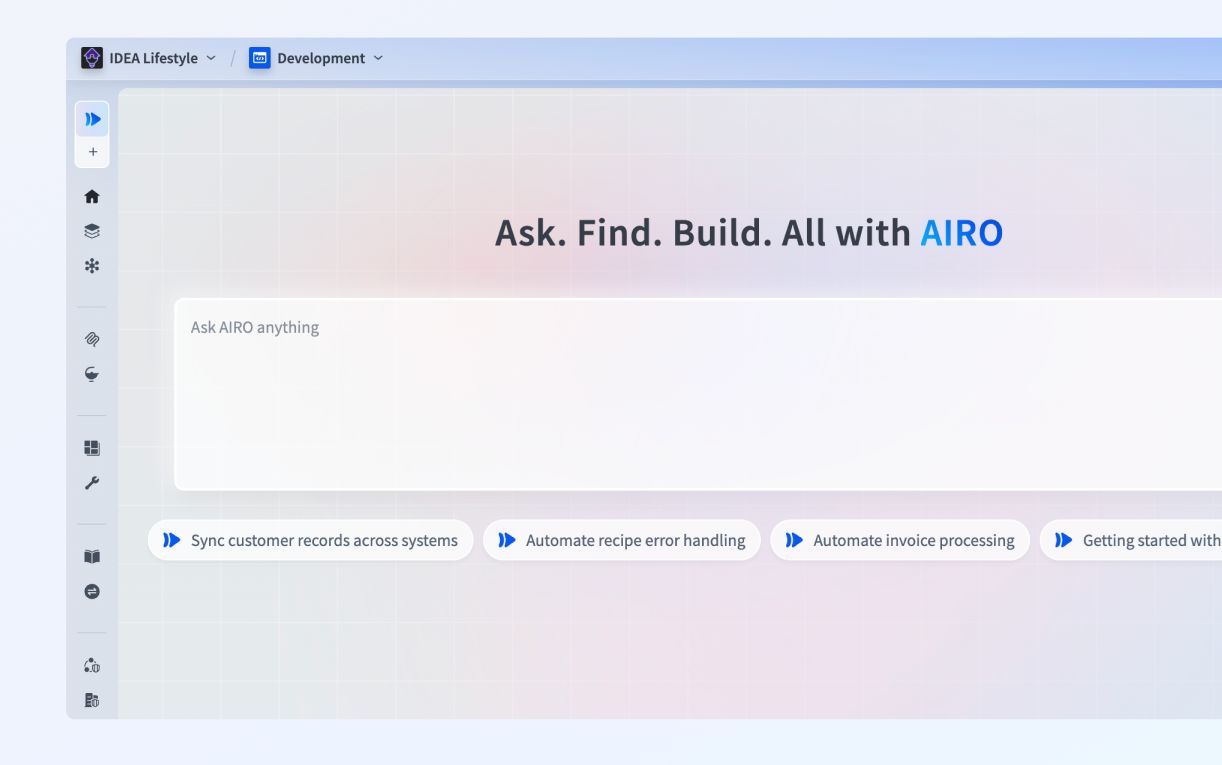
Workato is built for teams that run complex processes across many systems. It’s an enterprise no-code platform for workflow automation that connects business apps and handles multi-step operations. That makes it a solid fit for request routing, onboarding, and other structured workflows where steps need to happen in the right order.
Workflow Logic
Workato gives you a visual drag-and-drop builder, which helps teams map out workflows without starting from scratch in code. It also supports conditional logic and API-based workflows for more involved use cases, though those features are locked behind paid tiers.
Approvals & Requests
The platform supports request forms that can validate inputs and pull in context from upstream systems. In plain terms, people spend less time re-entering data by hand, and requests arrive with more of the details already filled in.
Integrations & Data Access
Workato comes with an external integration and connector library. That’s a big deal if your workflow needs to move between tools instead of living in one place. At the same time, data modeling and database management are limited. User authentication and role-based permissions are also paid-only production features.
Governance & Deployment
Workato includes collaboration tools, versioning, deployment controls, analytics, monitoring, and governance controls. Pricing is custom, and many core capabilities, including integrations, automation triggers, role permissions, and governance tools, are only available on paid plans. So while Workato can do a lot, it makes the most sense in setups where governance and orchestration are the main priority.
6. n8n
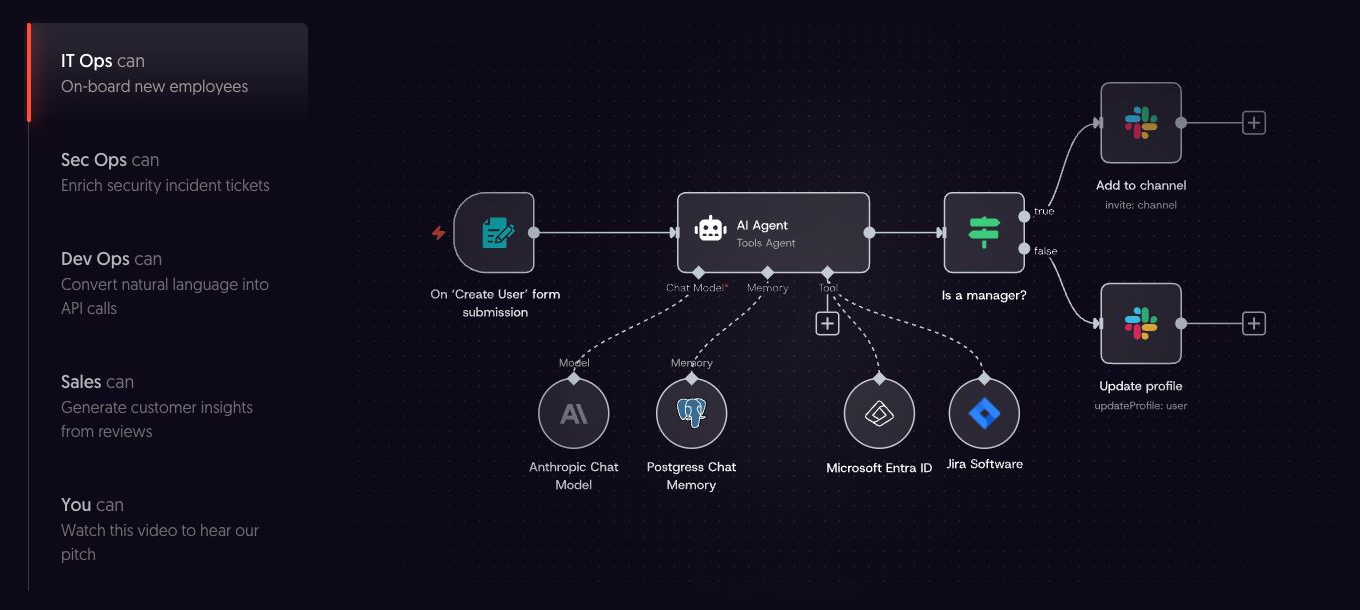
n8n sits in the middle ground between simple no-code apps and developer-first platforms. It starts with a free tier for self-hosting or light use, and paid Starter plans begin at $20/month.
Workflow Logic
n8n uses a node-based visual builder. It supports conditional branching through If and Switch nodes, and it works well for webhooks and other event-driven automations.
In plain English, this is the kind of tool you pick when workflows need to react to events, move data between systems, or call APIs in sequence. It’s a better fit for complex backend logic and API orchestration than for employee-facing request flows.
Approvals & Requests
This is one of n8n’s weaker spots for ops teams. It doesn’t include a native intake portal, so standardized request forms aren’t built in.
If your process depends on approvals, request tracking, or a clean front-end experience for employees, you’ll need a separate layer on top. That gap matters more as approval-heavy ops work becomes a bigger part of the setup.
Integrations & Data Access
The free tier includes core workflow building and integrations, which helps technical teams get started without much friction.
Governance & Deployment
Security, collaboration, versioning, and analytics are only available on paid plans. Because of that, regulated teams tend to hit the limits of the free tier pretty fast.
For technical ops teams running complex, event-driven automations, n8n makes a lot of sense. For structured internal processes with lots of approvals, it’s less practical.
| Feature | n8n Availability |
|---|---|
| Visual drag-and-drop design | Free (full) |
| Backend logic & API workflows | Free (full) |
| External integrations | Free (full) |
| Build business AI agents | Free (limited) |
| User authentication & roles | Paid only |
| Collaboration & versioning | Paid only |
| Analytics & governance | Paid only |
| Website publishing / employee portal | Not available |
7. Kissflow
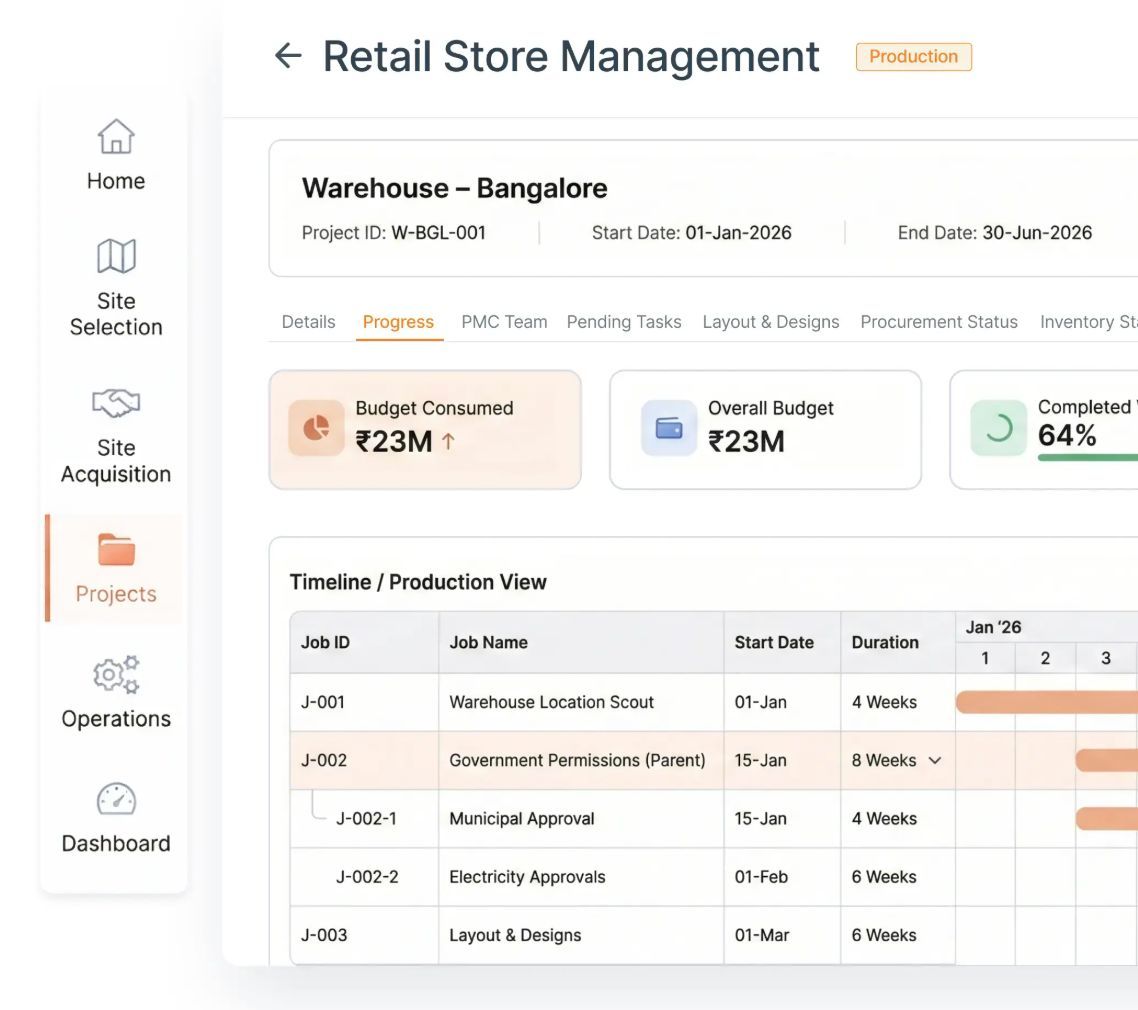
Kissflow is built for business process automation, especially for structured internal work. Think onboarding, procurement, and IT requests. It handles workflow logic, approvals, integrations, and governance with a no-code approach that many teams can pick up fast.
Workflow Logic
Kissflow uses a visual, form-driven workflow builder for structured business processes. Teams can create multi-step flows with conditional routing without writing code. This allows teams to transition quickly from an AI prompt to production-grade business apps.
That makes it a solid match for work that follows a set path. If your process has clear steps, clear handoffs, and clear rules, Kissflow fits that model well.
Approvals & Requests
Approvals are one of Kissflow’s main strengths. It supports sequential and parallel approvals, deadline-based escalations, and role-based task assignments.
In plain terms, you can route a request from one approver to the next, send it to several people at the same time, and push it higher if someone misses a deadline. That works well for purchase approvals and internal service requests, where delays can pile up fast.
Integrations & Data Access
Kissflow connects with common business apps like Google Workspace, Slack, and REST APIs. That gives teams a way to tie workflows into the tools they already use instead of working in a silo.
One thing to watch: integration depth changes by plan. So if your team needs more complex data syncs, it’s smart to check connector support before signing anything.
Governance & Deployment
Kissflow includes role-based access controls, audit trails, and admin dashboards. Those features help teams manage who can do what, track activity, and keep an eye on operations from one place.
It runs as a cloud-based platform, which makes deployment simpler for many companies. The tradeoff is that it gives less flexibility for teams that need on-premise or air-gapped setups.
8. Pipefy
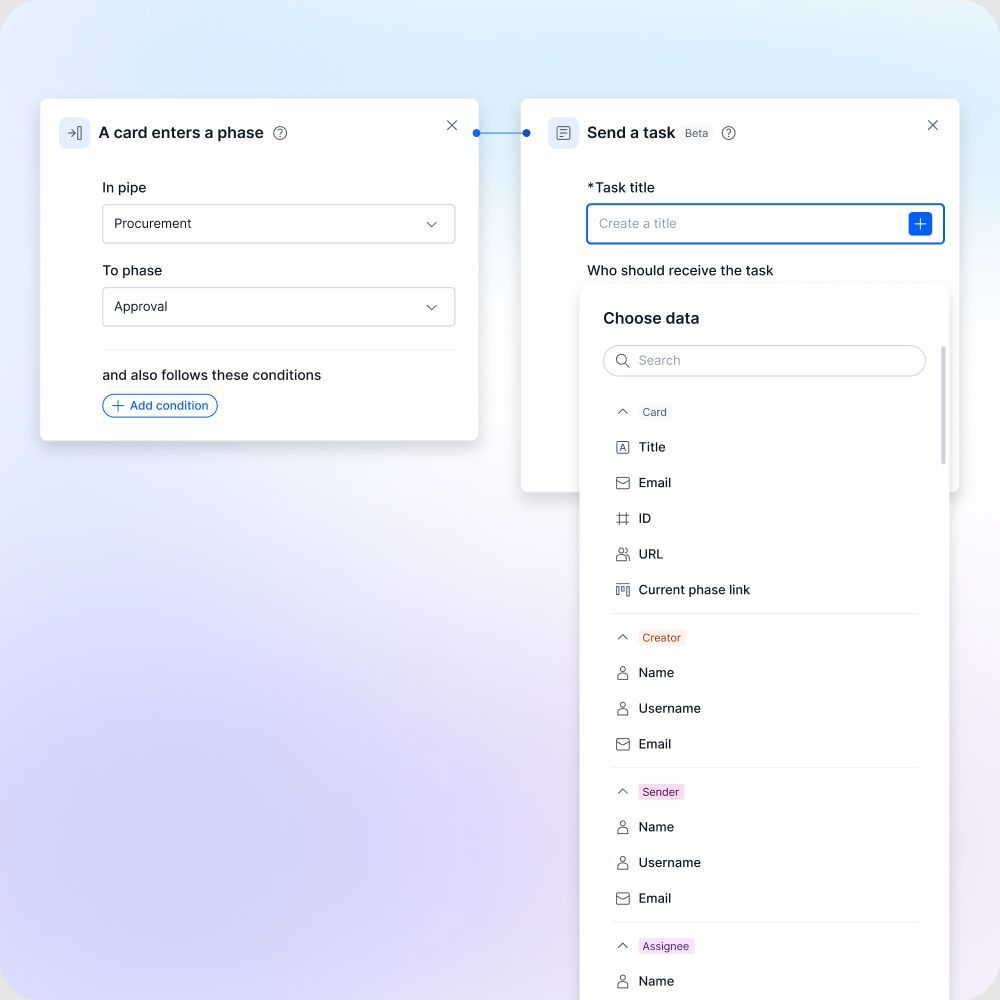
Pipefy is built for request flows where deadlines matter and intake needs to stay clean. It puts the focus on structured intake, SLA tracking, and escalation rules.
Workflow Logic
When an SLA is missed, Pipefy can trigger notifications and escalations.
Approvals & Requests
Structured forms help validate inputs and can pull context from upstream systems, so requests arrive more complete. That makes Pipefy a good fit for service desks, procurement queues, and request tracking where due dates can't slip.
Next, the focus shifts to lighter automation and sync use cases.
9. Activepieces
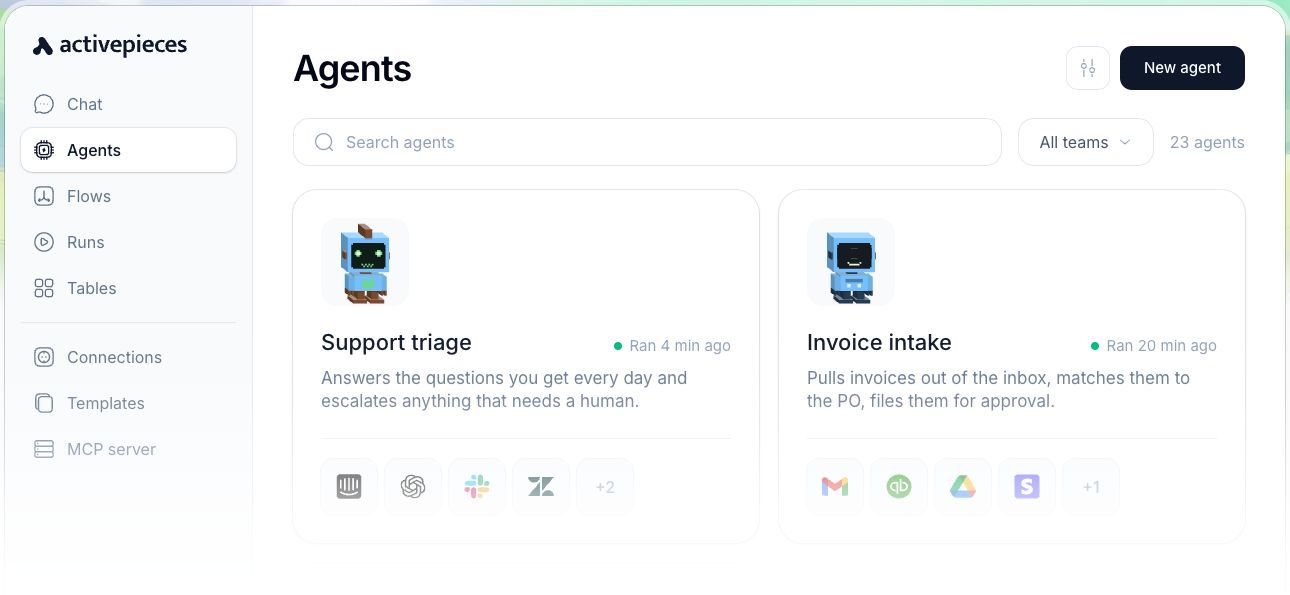
After structured intake workflows, Activepieces moves into a lighter kind of automation: app-to-app flows. It’s a workflow automation builder built for small ops tasks like syncing apps, sending notifications, and handing work off when something happens in another system. In practice, that means it’s a good match for syncing records, triggering alerts, routing tickets, and moving onboarding forward when connected tools fire an event. So if you’re looking at backend automation, it fits better there than in employee-facing request flows.
Workflow Logic
The free tier gives you the basics for core automations, but access controls and security are limited. That becomes a problem once approval chains get more complex or exceptions start piling up. User authentication and role permissions sit behind paid plans, so the free version isn’t a good option for secure approval flows that need role-based access.
Approvals & Requests
Activepieces doesn’t include a native request portal or an employee-facing approval interface. That’s a direct limitation for purchase approvals and internal request management, where people need a clear way to submit requests and check status. AI prompt steps can help with decision support, but they don’t replace structured human-in-the-loop approval logic.
Integrations & Data Access
The free tier includes external integrations and connector libraries, with some limits. For common SaaS sync use cases, that’s often enough.
Governance & Deployment
Governance, team collaboration, versioning, and deployment controls are only available on paid plans. Teams in regulated settings will likely outgrow the free tier fast.
10. Unito
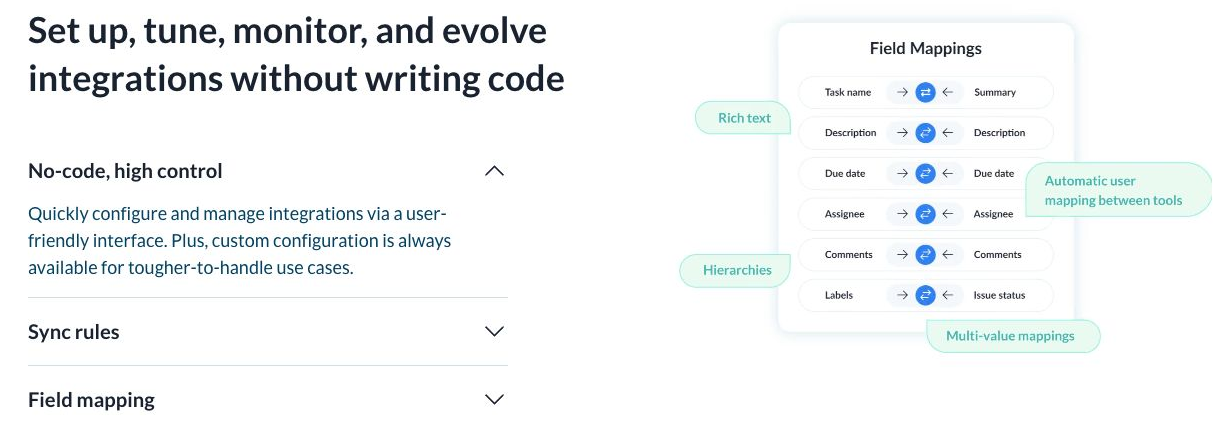
For teams that need records to stay in sync across tools, instead of building step-by-step automations, Unito fills that role well. It’s built for two-way data sync, which means records stay aligned across systems without people having to update them by hand.
Workflow Logic
Unito syncs fields in both directions between connected systems. So if a field changes in one tool, it updates in the other on its own. That makes it a good fit for shared operational data that has to match across platforms.
What it doesn’t do is handle workflow paths that rely on multi-step logic or conditional routing. If your process needs “if this, then that” logic across several stages, Unito isn’t the main tool for that job.
Approvals & Requests
Unito works best when the goal is simple: keep record changes matched across tools. Ticket status updates, request tracking fields, and shared project records can stay consistent without manual work.
It does not handle approval routing, though. So if your team needs decision steps, assignment rules, or handoffs based on approvals, you’ll need another layer for that.
Integrations & Data Access
Non-technical teams can set up field mappings between connected systems without needing engineering help. That lowers the barrier a lot, especially for ops teams that just want data to match across their tools.
Unito supports many common ops tools and SaaS platforms, which makes it a practical option for sync-first operations. Even so, access rules deserve a close look before rollout.
Governance & Deployment
Unito uses a cloud-based permissions model tied to the tools it connects to. If your team works with sensitive internal records, review access controls closely before rolling it out. The platform does not offer on-premise or air-gapped deployment.
Pricing is usage-based and grows with the number of synced items and connected tools. Before you commit, make sure the plan limits line up with your data volume. Otherwise, costs can climb faster than expected.
Side-by-Side Comparison by Ops Requirements
These tables turn the reviews into a practical shortlist. Instead of reading each tool one by one, you can scan for fit based on the ops work you need done.
| Tool | Workflow Logic | Approvals & Requests | Integrations & Data Access | Governance & Deployment |
|---|---|---|---|---|
| Jet Admin | Moderate | Strong | Strong | Strong (cloud; on-prem on Enterprise) |
| Zapier | Moderate | Limited | Strong | Limited (cloud) |
| Make | Strong | Limited | Strong | Limited (cloud) |
| Microsoft Power Automate | Moderate | Moderate | Strong | Moderate (cloud) |
| Workato | Strong | Moderate | Strong | Strong (cloud) |
| n8n | Strong | Moderate | Strong | Strong (self-hosted) |
| Kissflow | Strong | Strong | Moderate | Moderate (cloud) |
| Pipefy | Moderate | Strong | Moderate | Moderate (cloud) |
| Activepieces | Moderate | Limited | Strong | Limited (cloud) |
| Unito | Limited | Limited | Strong | Limited (cloud) |
There’s a pretty clear split here. Event-first tools tend to do better on workflow logic and integrations. Approval-focused tools tend to do better on governance and request routing. That matters because the right pick often depends on how your team works day to day. Are you automating system events, or are you moving people through requests and sign-offs?
The next table lines up each tool against five common ops use cases.
| Tool | Employee Onboarding | Ticket Routing | Purchase Approvals | Data Sync | Internal Requests |
|---|---|---|---|---|---|
| Jet Admin | Moderate | Moderate | Strong | Moderate | Strong |
| Zapier | Moderate | Strong | Limited | Strong | Moderate |
| Make | Moderate | Strong | Limited | Strong | Moderate |
| Microsoft Power Automate | Moderate | Moderate | Moderate | Moderate | Strong |
| Workato | Strong | Strong | Moderate | Strong | Moderate |
| n8n | Moderate | Strong | Moderate | Strong | Moderate |
| Kissflow | Strong | Moderate | Strong | Moderate | Strong |
| Pipefy | Strong | Moderate | Strong | Moderate | Strong |
| Activepieces | Moderate | Strong | Limited | Strong | Moderate |
| Unito | Limited | Limited | Limited | Strong | Limited |
Use these ratings to cut down the list first. Then compare the trade-offs in the pros and cons section. That’s usually where the short list gets a lot smaller.
Pros and Cons
Use the ranking above to narrow the list by fit. Then use this summary to compare control, cost, and deployment.
| Tool | Main Pros | Main Cons | Best For |
|---|---|---|---|
| Jet Admin | Governance controls (permissions, SSO and audit logs on Business and above); on-premise deployment on Enterprise; direct database and API connectivity | Paid tiers priced by AI credits; advanced governance needs Business | Ops teams needing governance, internal apps, and approval flows on sensitive data |
| Zapier | Fastest to launch; thousands of app integrations; reliable for simple tasks | Costs rise quickly with volume; limited UI-building depth | Teams automating simple cross-app tasks without IT involvement |
| Make | Strong visual branching logic; free tier includes integrations and connector library | No native request intake or approval dashboard; access controls require paid plan | Ops workflows with multiple decision points and conditional routing |
| Microsoft Power Automate | Predictable per-user pricing starting at $15/user/month; strong fit for Microsoft-centric process automation | Weaker outside Microsoft 365 | Microsoft-centric organizations automating internal processes |
| Workato | Visual drag-and-drop builder; supports complex multi-step orchestration; strong governance and versioning | Custom pricing; most core features are paid-only | Enterprise teams running governed, multi-system workflows |
| n8n | Open-source; self-hosting for tighter data control; flexible workflow logic | Requires more technical skill than most no-code tools to operate; self-hosted setups require maintenance | Technical ops or IT teams who need control over data residency |
| Kissflow | Strong approval routing with sequential, parallel, and escalation support; no-code form-driven builder | Integration depth varies by plan; cloud-only deployment | Structured internal processes like procurement, onboarding, and IT requests |
| Pipefy | Built-in SLA tracking and escalation rules; structured intake forms reduce incomplete requests | Limited workflow logic beyond intake and routing; cloud-only deployment | Service desks and procurement queues where deadlines drive operations |
| Activepieces | Free tier includes core automations and integrations; good for lightweight app-to-app sync | No native request portal or approval interface; governance features are paid-only | Backend automation and SaaS sync for small ops tasks |
| Unito | Two-way field sync keeps records aligned across tools without manual updates; non-technical setup | No multi-step workflow logic or approval routing; cloud-only with no on-premise option | Teams that need shared records to stay consistent across platforms |
Once feature fit is clear, use governance, deployment, and pricing model as the final filters.
Next, weigh those trade-offs against your team’s process requirements and security constraints.
Conclusion
The right pick comes down to what your ops team needs to control, connect, and maintain.
Choose Jet Admin when your workflows touch sensitive data in existing databases or APIs, and you need a governed internal portal with role-based access, audit logs (Business and above) and on-premise deployment on Enterprise. Jet Admin works well for governed workflows on sensitive data and supports different deployment needs.
Choose app-to-app automation tools for event-driven SaaS connections. Choose process-management tools for structured intake and step-by-step approvals. Choose self-hosted platforms when you need direct control over infrastructure.
These checks help separate tools that may look similar at first glance. And if you're down to two solid options, this is where the tie usually gets broken.
Before you choose a platform, verify:
| Requirement | What to Verify |
|---|---|
| Systems of record | Can the tool connect directly to your databases and APIs? |
| Write access | Does it support create, read, update, and delete records on production data? |
| Approval roles | Can you assign sequential or parallel approvers? |
| Execution volume | Are there caps on automation runs or records per month? |
| SSO and audit logs | Are these included in your plan tier or paywalled? |
| Failure recovery | Does the platform retry failed steps and alert on errors? |
| Workflow ownership | Can ops teams update workflows without engineering help? |
Governance features often sit behind higher-tier plans, so check exactly which plan gives your team the controls it needs.
FAQs
How do I choose the right tool for my team?
Start by pinpointing what your team needs day to day. That could mean an internal workflow app for intake and approvals, or an event-driven engine that triggers actions across multiple SaaS tools.
From there, check how well the tool fits with your current data sources and tech stack. Also look at how easy it is for non-technical users to work with, and whether it includes scalability, security, and role-based permissions.
A hands-on trial with your own data is often the best way to see if the workflow logic matches how your business actually runs.
What pricing model should I watch most closely?
Watch the pricing model that has the biggest effect on your bill as usage grows: per user, per workflow action/run/credits, or a mix of both.
That part matters more than it may seem at first. A tool can look cheap on paper, then get expensive once more people join or your team starts running more workflows each day. It’s also smart to check overage fees for extra tasks or actions, along with annual vs. monthly billing. That’s often where the fine print lives.
For Jet Admin, look at how its paid tiers are set up under its platform subscription model, then compare that with your workflow volume and the number of stakeholders who need access.
When do I need self-hosted deployment?
Choose self-hosted deployment when your organization needs strict control over infrastructure, data residency, and security.
It’s the right option when compliance rules limit cloud-hosted services, or when the application needs to stay behind a private firewall so data never leaves your internal network.